Learn the command line, one tool at a time.

This app is still actively been built, it can be used now, but the code will not be released into opensource like its sister app clojurefandango is, until its finished

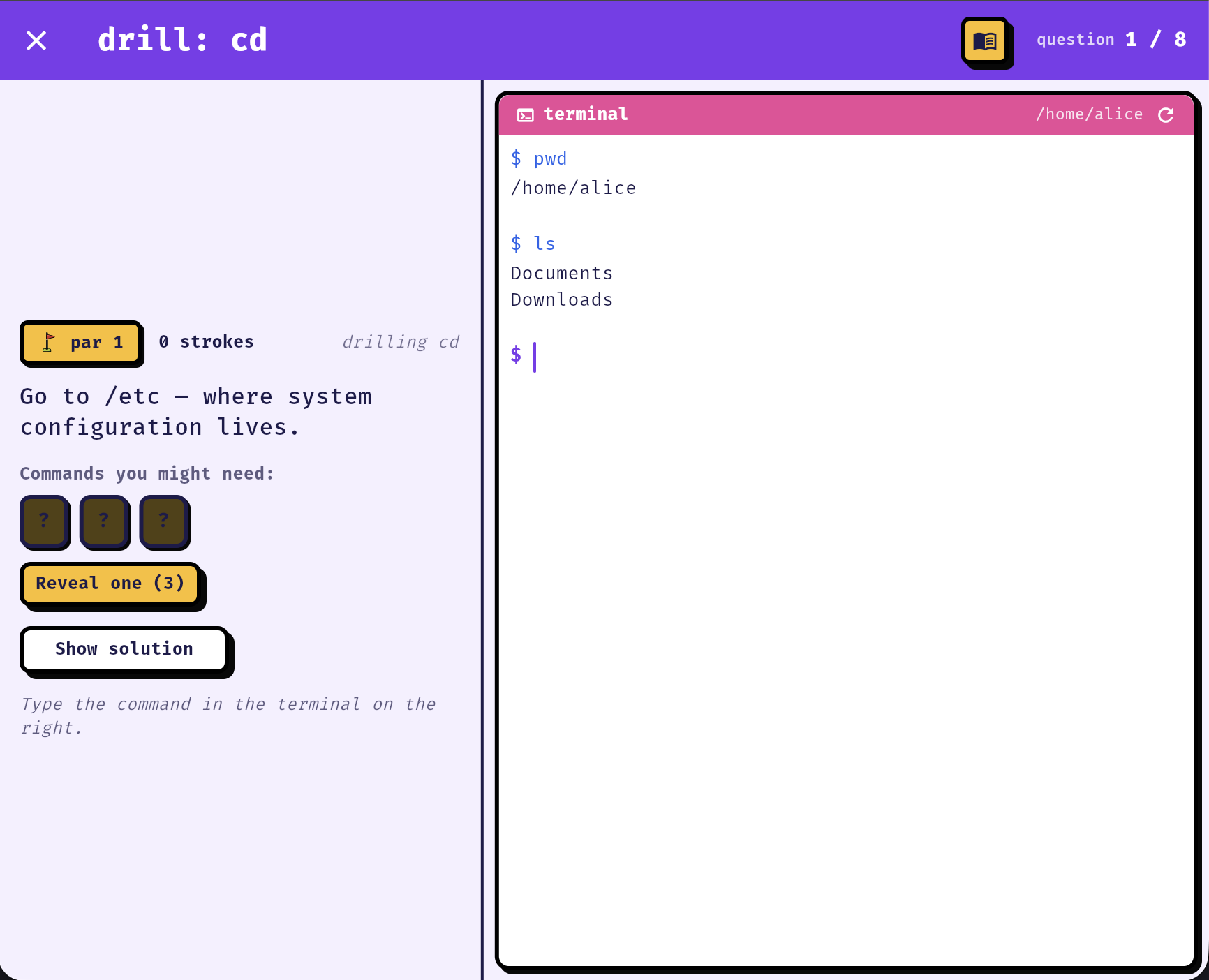
drill: cd question 1 / 8
par 1 0 strokes drilling cd

Go to /etc — where system configuration lives.

Commands you might need:

???
Reveal one (3) Show solution

Type the command in the terminal on the right.

terminal /home/alice
$ pwd
/home/alice
$ ls
Documents Downloads notes.txt
$
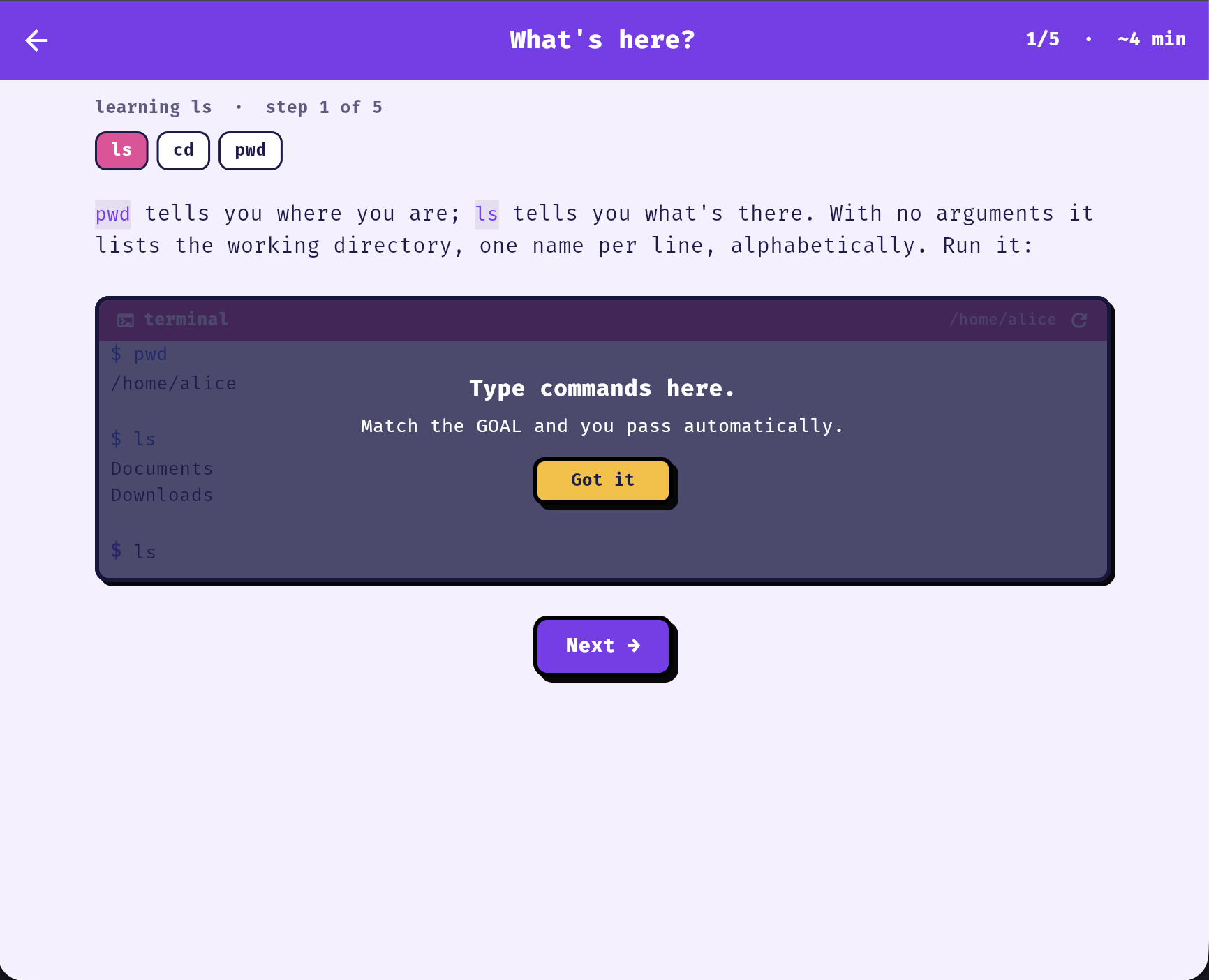
Learn ls

It covers the command line, tool by tool

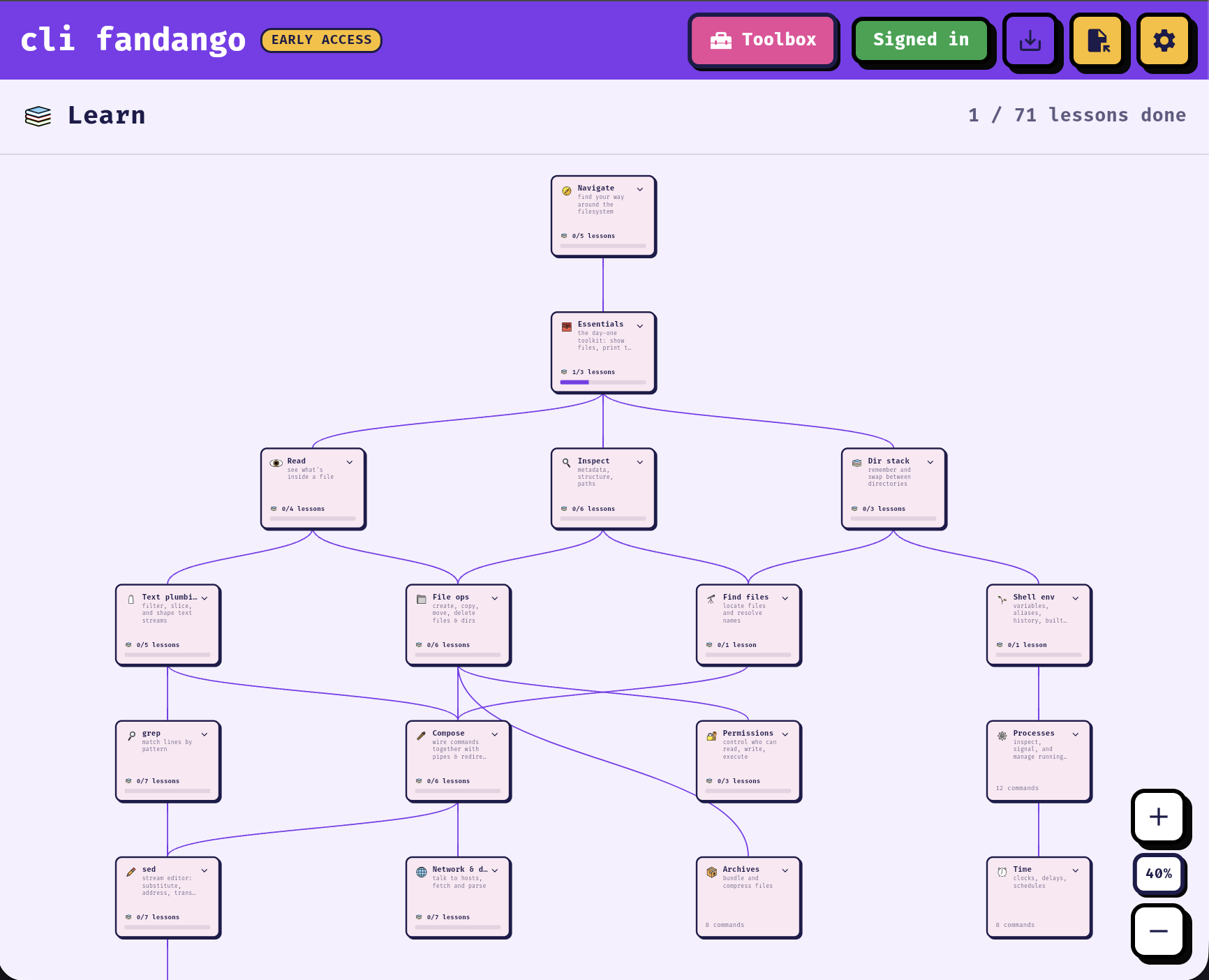
The Learn map: a tree of tools branching out from Navigate and Essentials

What is available now

Navigation

  • lslist directory contents
  • cdchange directory
  • pwdprint working directory

Essentials

  • catconcatenate and print files
  • echoprint arguments
  • manread the manual page

The dir stack

  • pushdpush dir onto the stack and cd
  • dirsshow the directory stack
  • popdpop dir from the stack and cd

Reading files

  • headfirst lines of a file
  • taillast lines (-f to follow)
  • tacreverse line order
  • nlnumber lines
  • wccount lines, words, bytes

Inspecting

  • filedetect file type
  • statfile metadata
  • treeshow a dir as a tree
  • basenamestrip directory from a path
  • dirnamestrip filename from a path
  • realpathcanonical absolute path

File ops

  • touchcreate or update timestamp
  • mkdirmake directory (-p)
  • cpcopy files and directories
  • mvmove or rename
  • rmremove files (-r)
  • rmdirremove empty directory

Permissions

  • chmodchange file mode bits
  • chownchange file owner
  • chgrpchange file group

Variables

  • envshow / run with env vars

Pipes

  • pipessend stdout to the next stdin (|)

Redirection

  • redirectionroute streams: > >> < 2> &>

Text shaping

  • trtranslate or squeeze chars
  • cutextract columns
  • sortsort lines (-n -r -k -u)
  • uniqdedupe adjacent lines

Finding files

  • findwalk the filesystem with predicates
  • xargsbuild commands from stdin

Power tools

  • grepmatch lines by pattern
  • sedthe stream editor
  • awkfield/record processor

Data & network

  • curlHTTP client
  • jqJSON processor

Arch Linux

  • archpacman, mirrors, PKGBUILD

Coming soon

Reading

  • less
  • od
  • xxd
  • readlink

File ops

  • ln
  • mktemp

Permissions

  • umask
  • sudo
  • su

Shell & vars

  • export
  • printenv
  • set
  • unset
  • source
  • alias
  • unalias
  • history
  • printf
  • read
  • clear

Streams

  • tee

Text shaping

  • paste
  • comm
  • join
  • column
  • expand
  • fold
  • split

Finding

  • locate
  • which
  • type
  • whereis
  • apropos
  • whatis

Network

  • wget
  • ping
  • host
  • dig
  • nc
  • ss
  • ip

Processes

  • ps
  • pgrep
  • pkill
  • kill
  • jobs
  • fg
  • bg
  • top
  • time
  • nohup

Time & scheduling

  • date
  • sleep
  • timeout
  • cal
  • watch
  • crontab
  • uptime

Archives

  • tar
  • gzip
  • zip
  • unzip
  • xz

What an exercise is made of

the terminal

A real shell sandbox

The terminal is where you work. It's a small virtual filesystem with actual files, and cd, ls, pipes, &&, redirection and $VARS all behave like they do in a normal shell.

  • The task is described on the left; you carry it out on the right.
  • It runs your command and prints the output, line by line.
  • When the last command's output matches what the task asked for, the exercise passes — there's nothing to submit.
  • For commands that print nothing, like cd, you add a check: cd /etc && pwd.
A drill: the task and hint chips on the left, a live terminal on the right
learn

A short lesson first

Before you practise a tool, a lesson introduces it. Each step explains one idea, then gives you a live terminal to try it in. Lessons are plain text, worked examples, and these little sandboxes — nothing is locked, so you can skip ahead if you already know a tool.

Learning ls, step 1 of 5: a short explanation above an inline terminal

If you get stuck

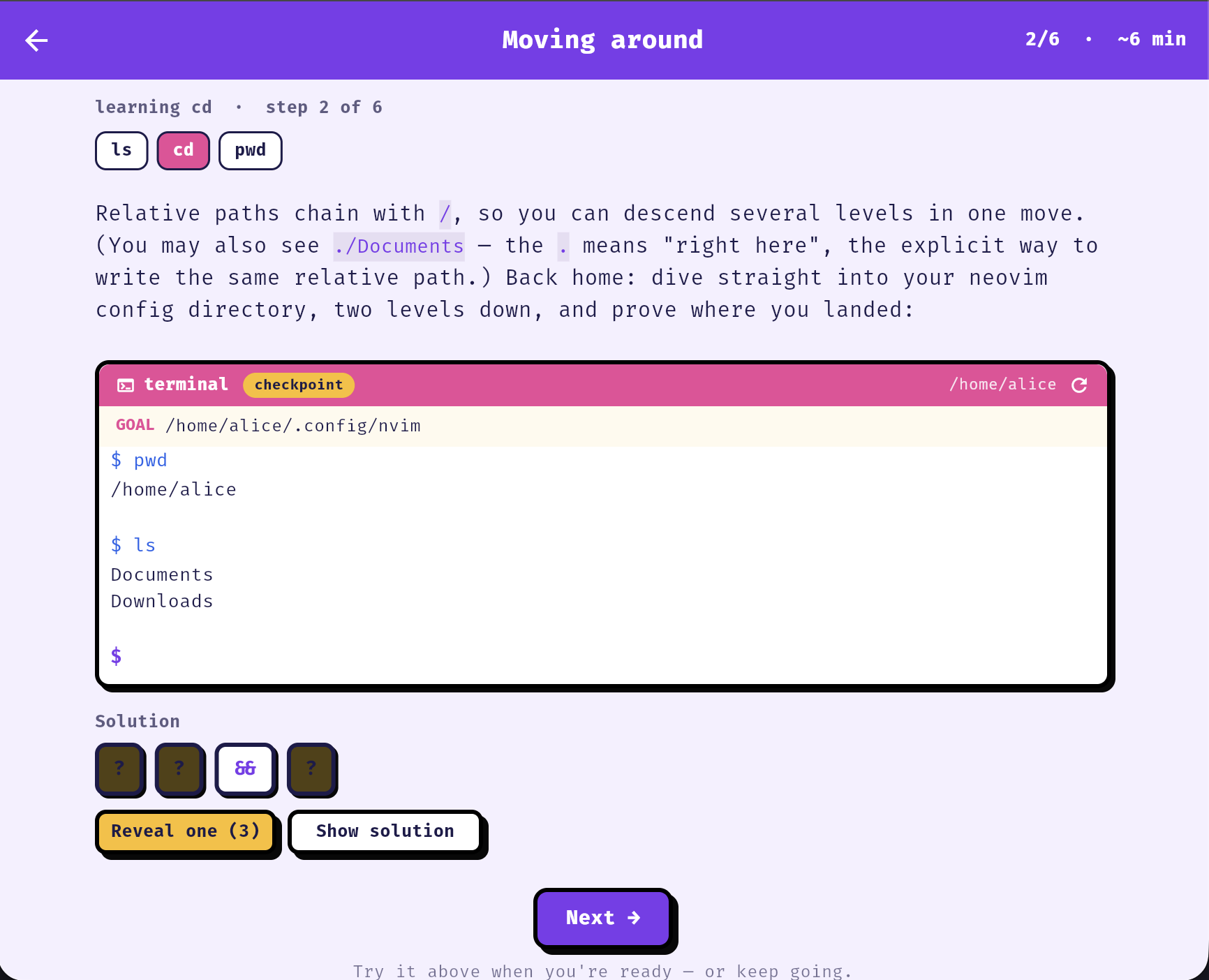
When a step sets a goal, you can reveal the solution one token at a time, or show the whole command. The sandbox stays open the whole time, so you can try it the moment it makes sense.

A lesson checkpoint with a goal, a sandbox, and reveal-solution controls
practice

Practise it, and see how you did

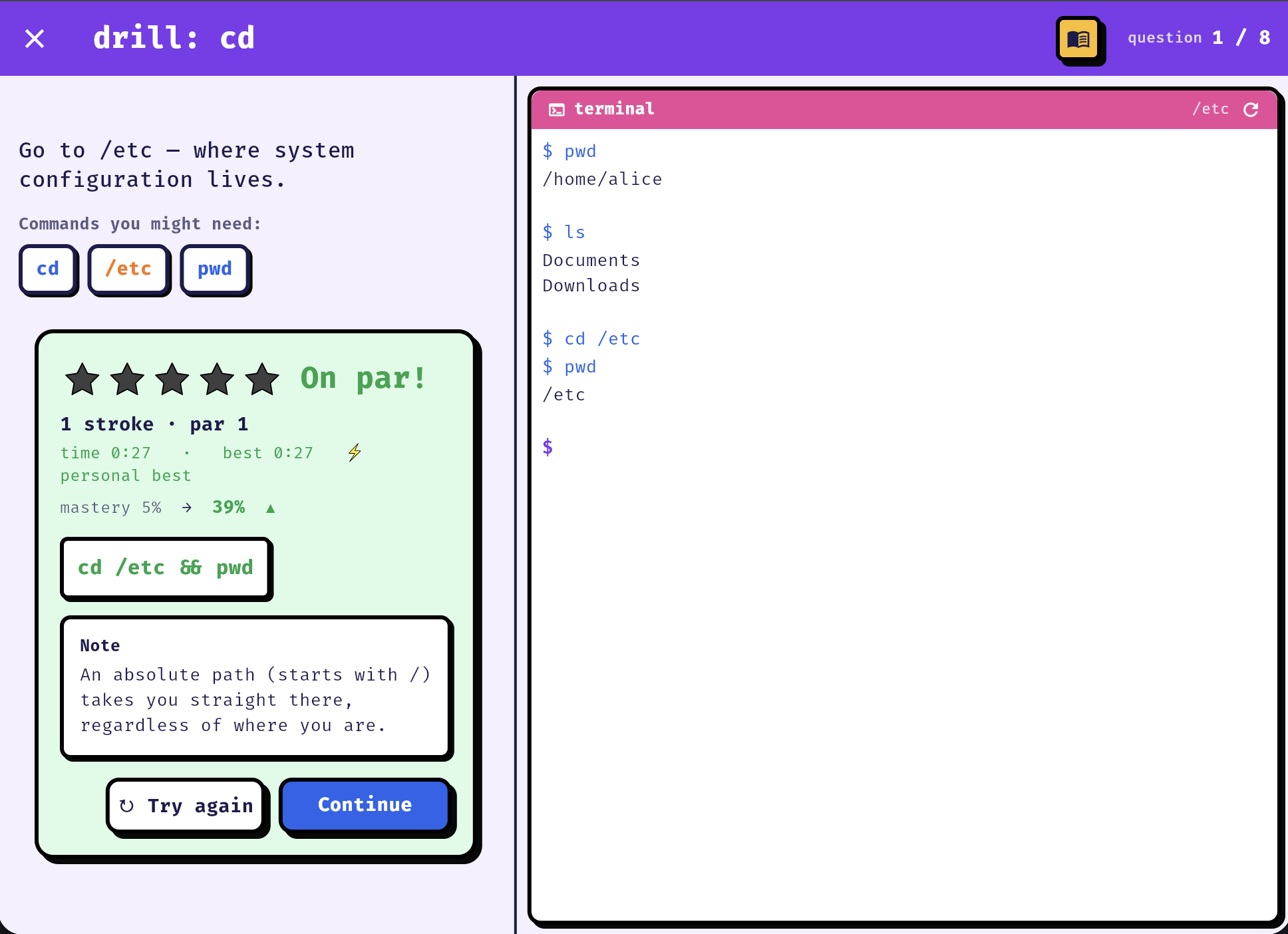
Each task shows a par — the number of commands in the intended solution, usually one. Solve it in that many or fewer and you get five stars; each command over par drops a star. Retrying is free. When you pass, you see your stars and strokes against par, your time and best, the intended solution, and how much the solve moved your mastery of the command.

A passed drill: five stars, on par, the intended command, and a note

Reveal the solution, and read the flags

  • Stuck? Reveal the solution a token at a time, or all of it. Revealing lowers the credit toward your mastery, so a guess first is worth it.
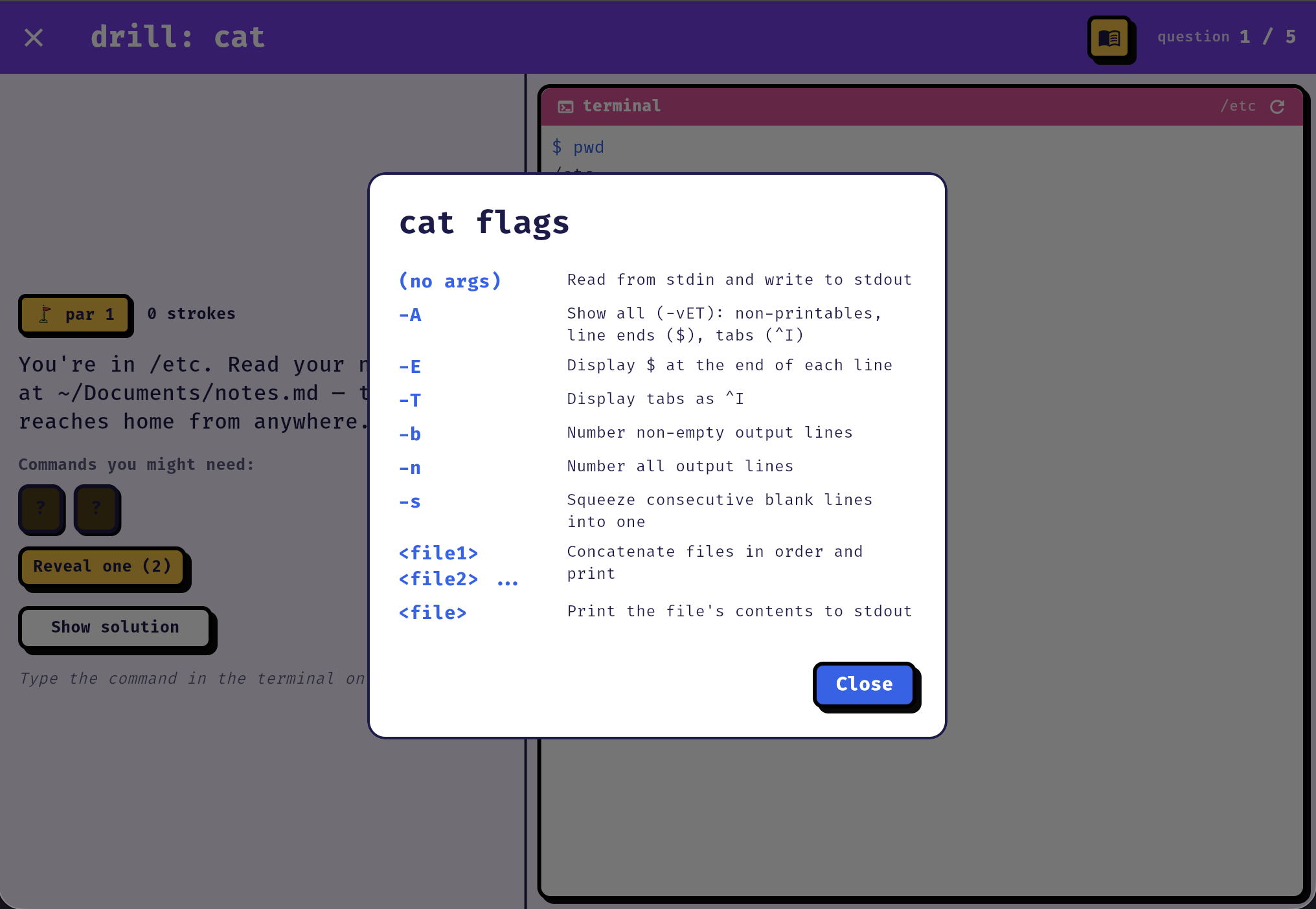
  • Every tool has a flag reference you can open mid-exercise — what -n, -r or -s actually do, without leaving the screen.
A built-in flag reference for cat, listing -A, -E, -T, -b, -n and -s
how it remembers

Knowledge tracing + spaced repetition

As you practise, the app keeps a running estimate of how well you know each part of a command — that's Bayesian Knowledge Tracing. It's the mastery number you saw jump on the result card. Because it's per-token and Bayesian, one lucky guess doesn't read as "known", and getting -n right on grep carries over to head.

Left alone, that mastery decays along the forgetting curve — memory fades fastest right after you learn something. Spaced repetition schedules each item to come back just as it's about to slip, and every time you get it right the next gap gets longer.

mastery time → due for review minutes hours days weeks+
Each correct review (●) resets mastery higher and stretches the gap before the next one.

You pick how much to review

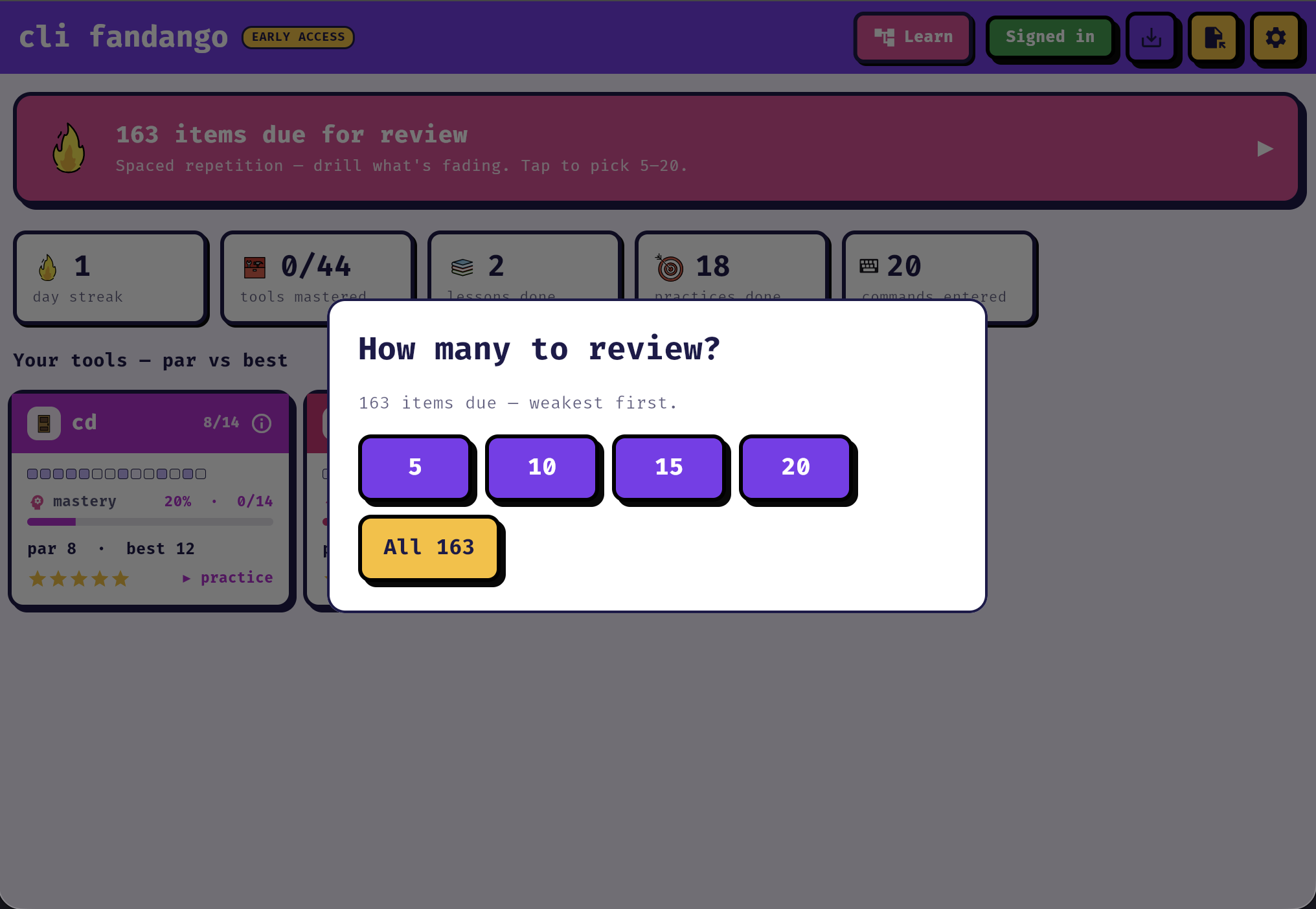
When items are due, the practice queue lists them weakest first and lets you take on a handful or clear the lot. A normal session is eight tasks — five new, three review.

A 'how many to review?' dialog: 5, 10, 15, 20 or all due items, weakest first
the toolbox

Everything you've learned, in one place

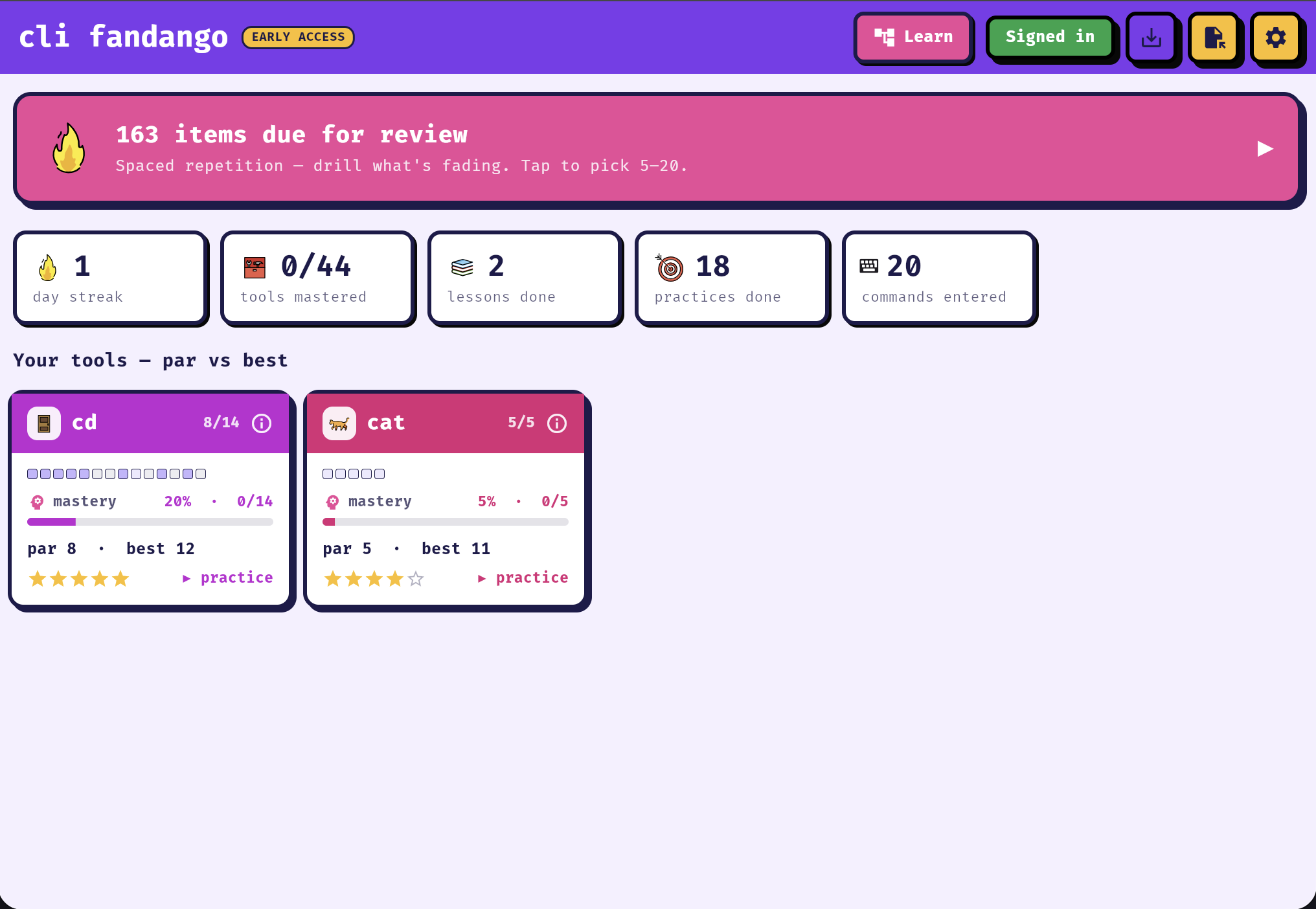
Every tool you've started shows up in your toolbox. Each gets a card with a mastery heatmap, its par against your best, and an overall star rating — alongside your streak, tools mastered, lessons done and commands entered.

The toolbox: streak and totals on top, per-tool cards with mastery bars and par-vs-best

The full breakdown per tool

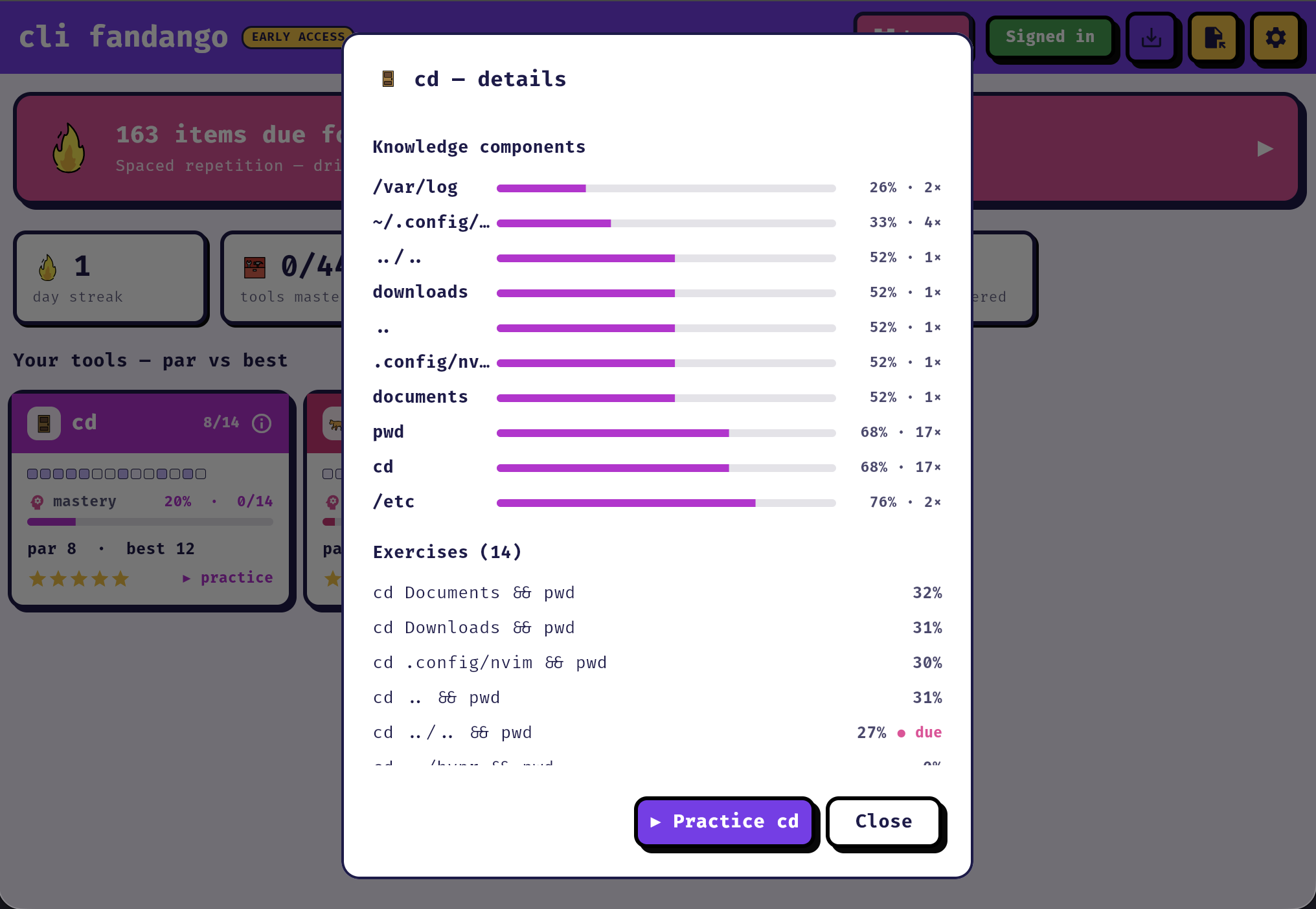
Open a tool for the detail: your mastery of each individual part of the command, and every exercise listed with its score and whether it's due for review.

A cd details panel: per-token mastery bars and a list of exercises with scores

Save your progress without an account

  • Local-first. Progress is saved locally as you go — no sign-up to start, nothing sent anywhere by default.
  • Back it up as a file. Export your whole profile to a JSON file and import it on another device. Importing merges, so it never overwrites newer progress.
  • Optional sign-in. Want it synced across devices? Sign in and your profile is kept as one file in the cloud, merged with whatever's local. Skip it and nothing changes.
  • Browser or desktop. Run it in a browser, or install a desktop build that runs entirely offline on your machine.
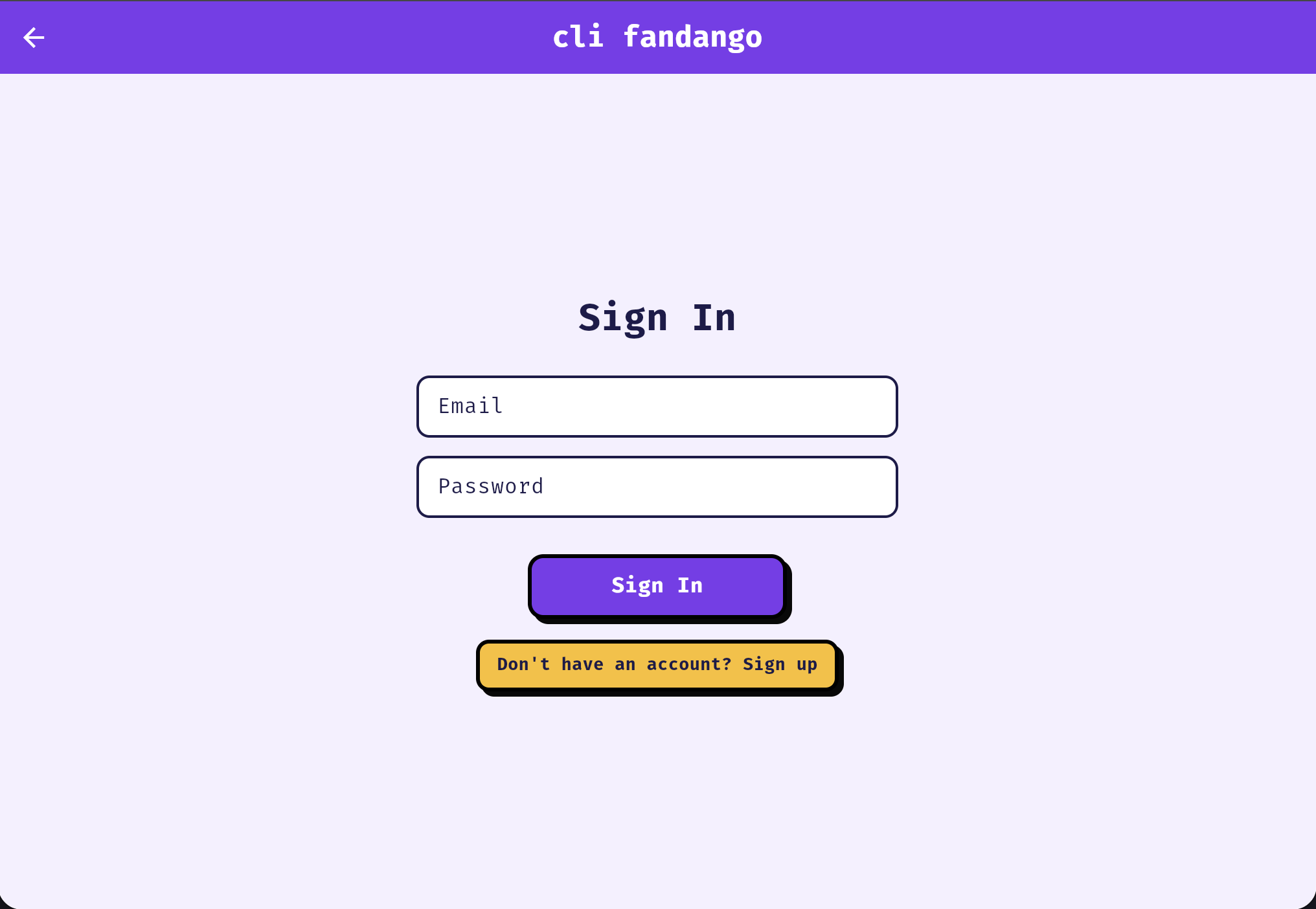
The optional sign-in screen, with a 'sign in to save progress' option
Signing in is optional — it only adds cross-device sync.

Try the app yourself